WINDOWS PHOTO ORGANIZING GUIDE

How to Fix Hundreds of Sideways and Upside-Down Photos at Once on Windows

A folder with upright, sideways, and upside-down photos needs more than one shared rotation. Here’s how to fix sideways photos in bulk on Windows.

By Prahlad Delaney · Founder, Photo Digitizer

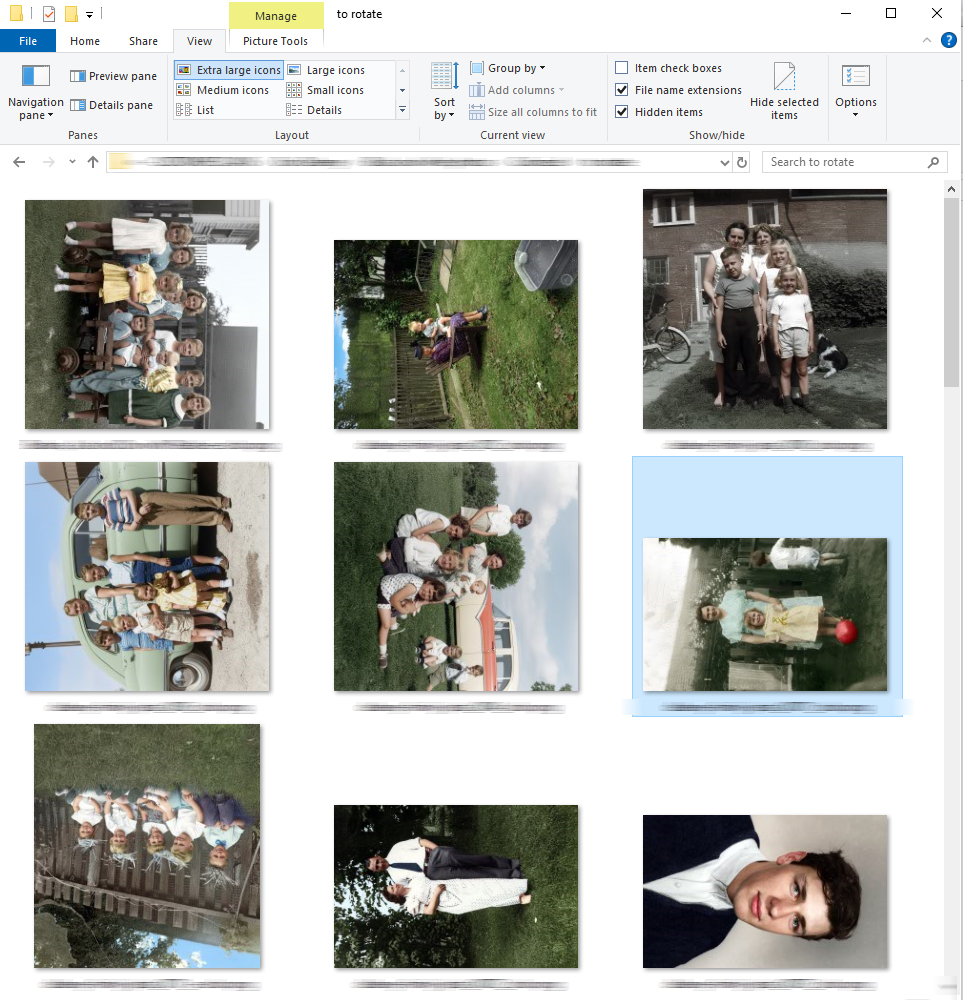
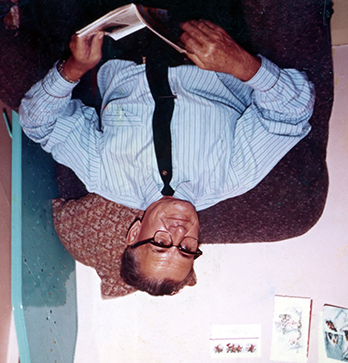
BEFORE · MIXED ORIENTATIONS
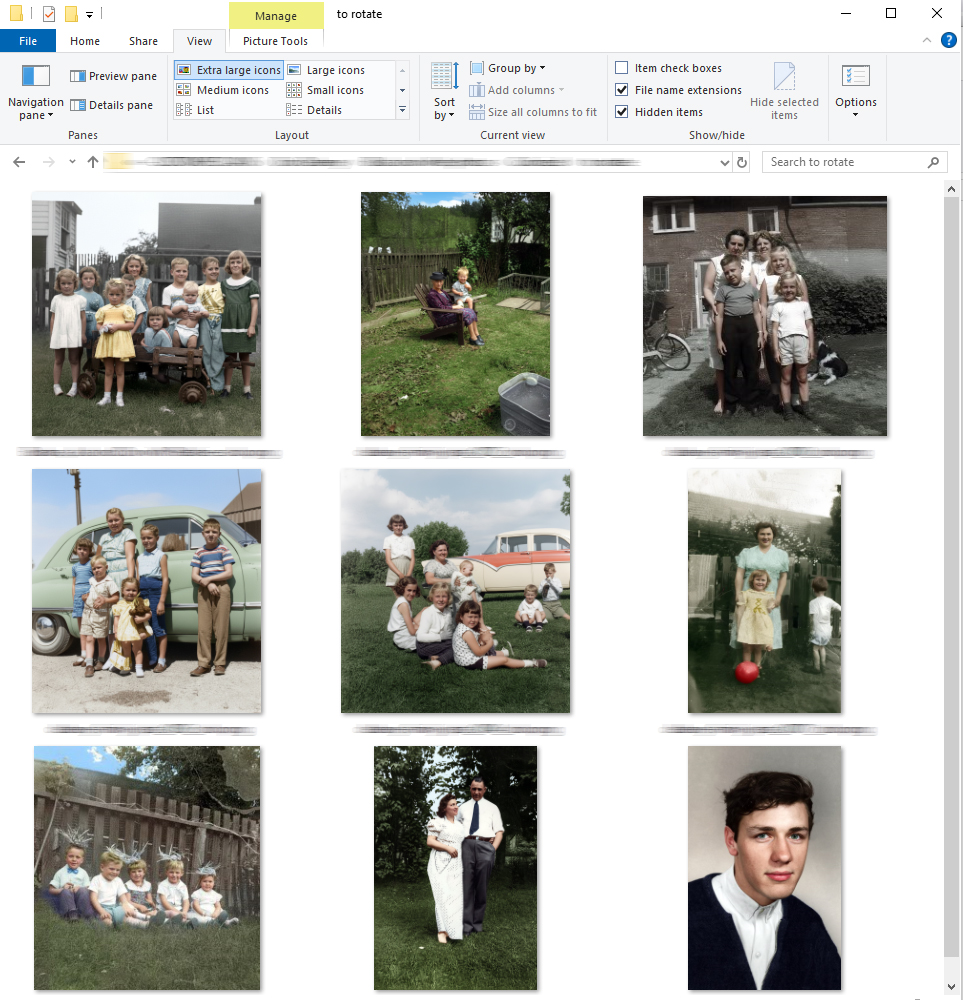
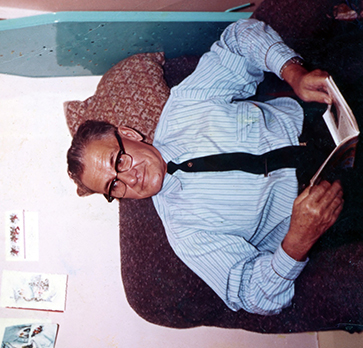
AFTER · CORRECTED ORIENTATIONS
IN THIS GUIDE

Holiday pictures, shared downloads, old camera files, and scanned prints can all end up in the same folder. Their orientation problems may have different causes.

Why photos end up facing different directions

Different sources

A mixed collection may combine phones, digital cameras, shared albums, message attachments, and scanned prints. Those files do not necessarily describe their orientation in the same way.

Different orientation clues

Some images contain sideways pixel data plus an instruction telling a viewer how to display them. Others have already been physically rotated. Editing, exporting, or transferring files can change how that instruction is preserved or interpreted. A photo that appears upright in one program can therefore look sideways in another.

Upside-down photos introduce another complication: their width and height may look perfectly normal. A landscape-shaped file can still be facing the wrong way. Sorting by dimensions alone cannot tell you which direction the scene should face.

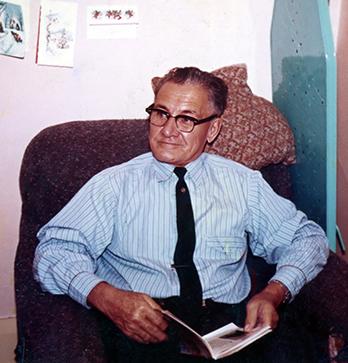
UPRIGHT · 0°
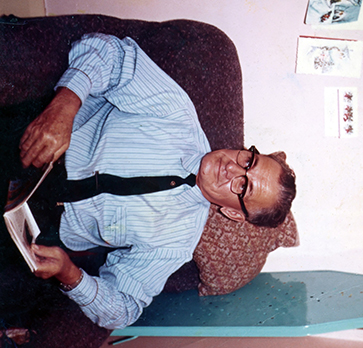
SIDEWAYS · 90°
UPSIDE DOWN · 180°
SIDEWAYS · 270°

EXIF orientation and scanned-photo orientation are different

Camera photos may carry a display instruction

Many cameras and phones store an EXIF orientation tag. Compatible software reads it and displays the photo in the intended direction. This is metadata: information about the image, rather than a visual judgment about the objects inside it.

A correct tag works when the viewer honors it. Missing or incorrect tags, or differences between programs, can make the problem appear only after moving a collection between applications.

Scans often need the image itself interpreted

A scanner captures the print as it is placed on the glass or fed through the machine. If a print enters sideways, its pixels can be sideways too, with no useful camera orientation tag to explain the mistake. Software must examine the visible content to decide which way is upright.

The same practical problem can occur in other files without reliable orientation information. The important question is whether the viewing direction can be recovered from metadata or must be inferred from the picture. For a scanning-specific explanation, see our guide to automatically rotating scanned photos in bulk on Windows.

Why ordinary batch rotation fails with mixed orientations

Many tools let you select several images and rotate them together. That is useful when every selected photo needs the same correction. For example, a group of pictures all lying on the same side can receive one shared quarter-turn.

To correct mixed photo orientations, the required action varies by file: leave it alone, turn it 90°, turn it 180°, or turn it 270°. A batch rotate photos command is only as useful as the selection you make before running it. Without individual analysis, you still have to sort the images into matching groups yourself.

One folder. Different corrections.

A mixed folder is different. Imagine four pictures: one upright, one sideways to the left, one sideways to the right, and one upside down. Applying the same turn to all four changes the good image and still leaves several facing the wrong direction.

The slow method: rotate multiple photos in Windows manually

Tired person at a computer beside a large stack of printed family photos.
Rotating a large collection manually can feel endless. Illustrative image created with AI.

For a small collection, manual correction is reasonable. Open the folder in File Explorer, use large thumbnails, and inspect the images. Where available, select a photo and use Rotate left or Rotate right. You can also open an image in the Windows Photos app and use its rotation controls. The exact controls vary with your installed version.

THE SLOW METHOD · INSPECT → GROUP → ROTATE → REVIEW
  1. Work on a copy of the folder so your originals remain available.
  2. Identify photos that need the same rotation.
  3. Select that group and apply the appropriate turn, or correct images individually in Photos.
  4. Check upside-down pictures separately; they need a half-turn.
  5. Review the entire folder again for missed files or accidental changes.
500 photos
More than 40 minutes

Illustrative calculation: at five seconds of inspection per photo, 500 photos take over 40 minutes—before grouping, rotating, or checking again. Actual time varies.

A better approach: analyze each image individually

Analyze the image

A useful automatic approach makes a separate orientation decision for every photo. It examines the picture, determines which of the four right-angle orientations appears upright, and applies a correction only when there is enough confidence.

Choose the right correction

This matters because a large folder should not need to be perfectly sorted before you begin. Upright pictures can remain upright while sideways and upside-down pictures receive different corrections in the same run.

Review uncertain photos

Automatic interpretation still has limits. Abstract scenes, unusual camera angles, close-ups, reflections, and images without obvious directional cues can be ambiguous. A sensible workflow includes reviewing uncertain pictures and checking the results, especially before using the collection in an album, slideshow, or client delivery.

FROM ONE SHARED TURN TO INDIVIDUAL CORRECTIONS

How Smart Photo Auto-Rotate works

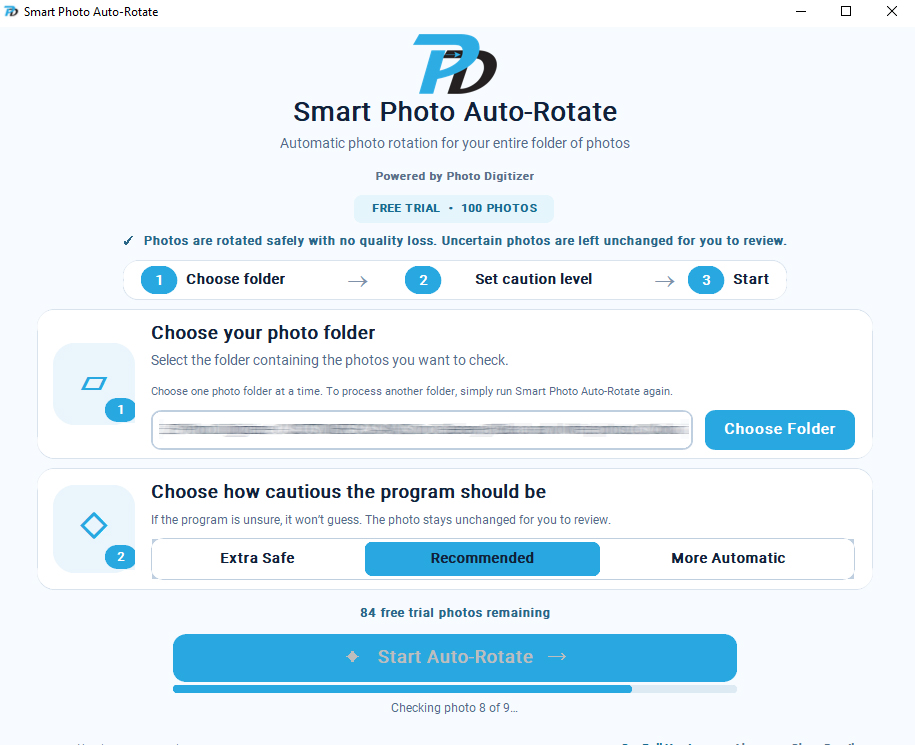
Smart Photo Auto-Rotate is a Windows desktop utility designed for this individual-image approach. It analyzes each image separately and can determine upright, 90°, 180°, or 270° orientation. Confident images are corrected automatically. Uncertain images are left unchanged for review.

It works on Windows 10 and Windows 11 and supports JPG/JPEG, PNG, TIFF/TIF, and BMP. JPEG rotation is performed with no quality loss when you fix upside-down photos on Windows.

Smart Photo Auto-Rotate application analyzing photos on Windows.
Smart Photo Auto-Rotate running on Windows. Screenshot shown without cropping.

Individual image analysis

Each photo gets its own orientation decision.

Mixed orientations

Upright, 90°, 180°, or 270°.

Local processing

Photos stay on your computer.

JPEG quality preserved

JPEG rotation with no quality loss.

A practical folder-by-folder workflow

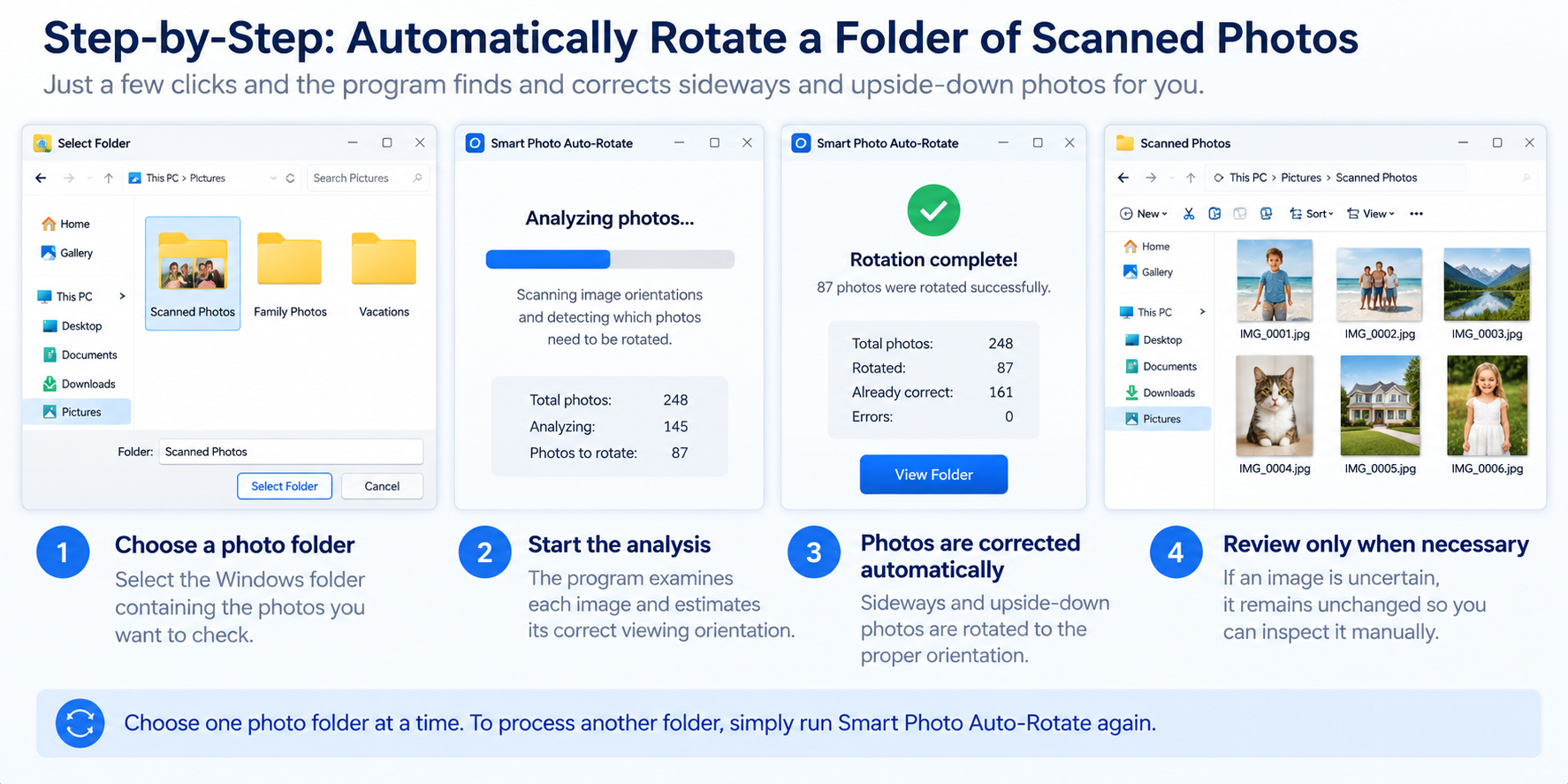
STEP 01

Prepare a working copy.

Choose a representative folder containing both correct and incorrectly oriented photos.

STEP 02

Select that folder.

The program processes one selected folder at a time. It does not process subfolders.

STEP 03

Start the analysis.

Each image is assessed individually, rather than receiving one blanket rotation.

STEP 04

Review the results.

Check corrected photos and inspect uncertain images that remain unchanged.

STEP 05

Repeat for other folders.

Select and run each additional folder separately.

Use the checklist above to automatically rotate photos, then review the outcome before sharing or archiving the collection.

Simplified illustration of selecting a folder, analyzing photo orientations, and reviewing corrected images.
Simplified workflow illustration; this is not a screenshot of the app interface.

Photo analysis stays on your computer

Analysis happens locally on your Windows computer. Your photos are not uploaded to Photo Digitizer for processing. That can be useful for family archives and personal collections you prefer to keep on your own machine.

Why it is especially useful for scanned photos

Scanned collections often contain many orientation errors because prints were originally stored in different directions. A fast scanning session can turn those physical differences into a folder of mixed digital images. Reading camera metadata cannot reliably resolve a direction that was never recorded in the first place.

Individual image analysis addresses that problem directly. It also fits a larger organizing workflow: digitize the prints, correct viewing directions, then name, sort, and share the resulting files. If your project still starts with boxes of prints, Photo Digitizer’s professional photo scanning services can help with the digitization stage.

Who benefits from correcting a mixed photo folder?

This approach is useful for family historians combining generations of pictures, people gathering photos for a slideshow, and anyone consolidating files from several devices. It can also help photographers and scanning professionals preparing large collections for review.

The best fit is a folder with many files that would otherwise need individual inspection. For three obvious mistakes, manual rotation may be quicker. For hundreds of mixed images, automatic analysis can handle confident corrections while you focus on the remaining review.

Try it on 100 photos before purchasing

Smart Photo Auto-Rotate is available worldwide. The free trial lets you process up to 100 photos, giving you a way to evaluate it with your own collection. Include upright photos as well as sideways and upside-down examples when you test, and review the outcome.

The full version costs $9.95 as a one-time purchase, with no subscription. You can find the trial and purchase information on the Smart Photo Auto-Rotate product page.

100 photos

Free trial

$9.95 once

Full version · No subscription

Fix the direction of each photo, then enjoy the collection

To fix sideways photos in bulk, match the method to the problem. A shared rotation works for images that all need the same turn. A folder with mixed directions needs separate decisions for each picture.

Start with copies, test a representative selection, and review the results. If you have hundreds of photos to straighten out, see how the individual-image workflow fits your collection.

Try Smart Photo Auto-Rotate free

Test it on up to 100 photos on your Windows computer.

ABOUT THE AUTHOR

Prahlad Delaney is the founder of Photo Digitizer in Jacksonville, Florida, where he personally handles photo scanning and digital restoration. His work includes helping families preserve and organize their photo collections. Meet Prahlad and learn about Photo Digitizer.

How to Fix Hundreds of Sideways and Upside-Down Photos at Once on Windows
Scroll to top