
Professional Bulk Photo Scanning Solutions
How to Automatically Rotate Scanned Photos in Bulk on Windows
Learn why scanned photos often end up sideways, why normal auto-rotation can fail, and the easiest way to fix hundreds of photos at once on a Windows computer.
By Prahlad Delaney | Photo Scanning Tips
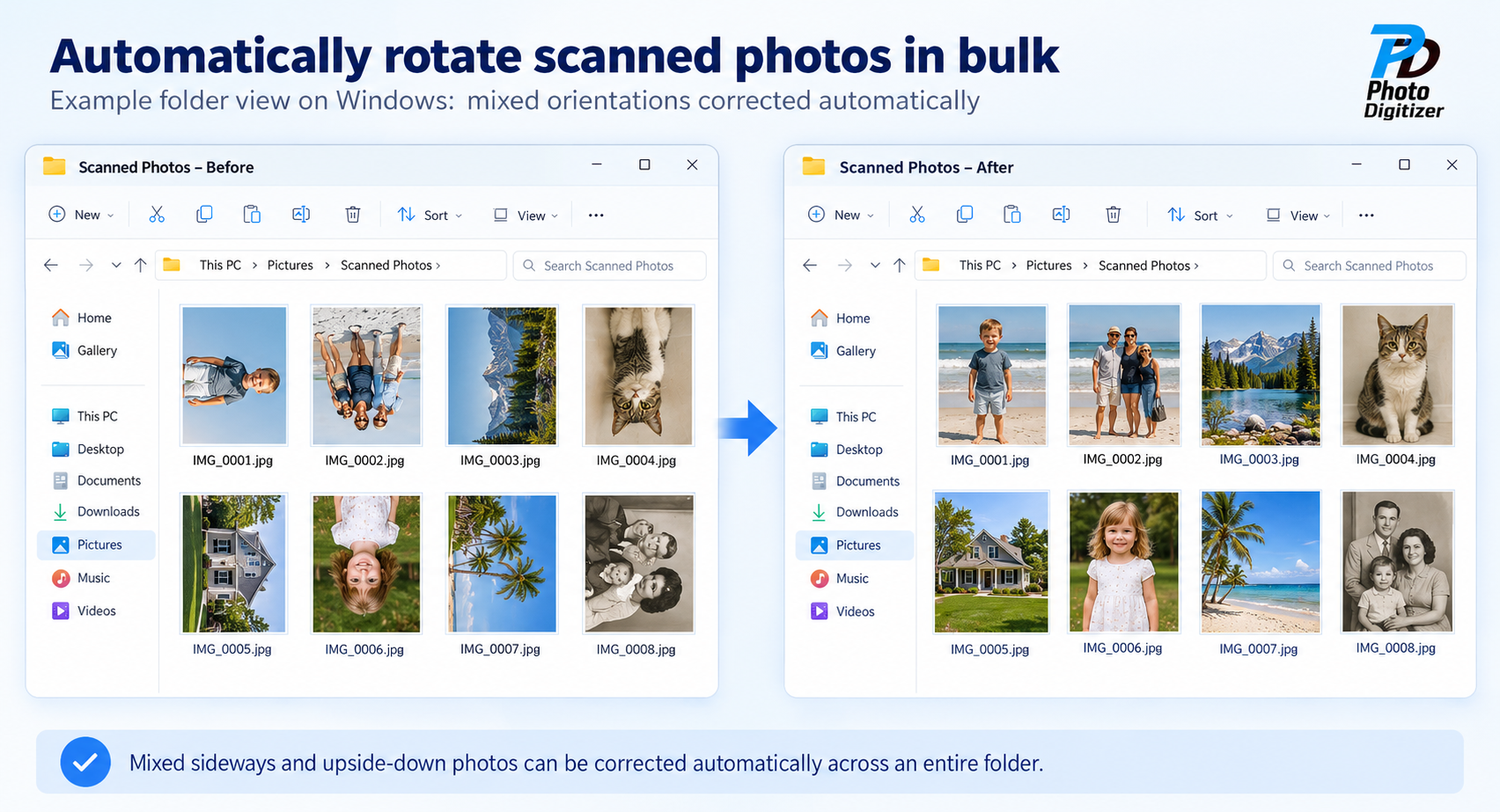
If you’ve ever scanned a stack of old photos, you’ve probably ended up with a folder full of sideways and upside-down images. Manually rotating each one can take hours—especially when you have hundreds or even thousands of photos.
In this guide, I’ll explain why this happens, why standard auto-rotation doesn’t always solve it, and how to automatically rotate scanned photos in bulk on Windows.
Why Scanned Photos Often End Up Sideways or Upside Down
Digital cameras and smartphones usually save orientation information inside the photo file. That information tells compatible software whether an image should be displayed upright, sideways, or upside down.
Scanned photos are different. A scanner captures whatever direction the printed photograph is facing on the scanner bed or document feeder. The resulting image often has no useful orientation information for software to follow.
That means a stack of photos scanned quickly can easily produce a folder containing all four possible orientations.
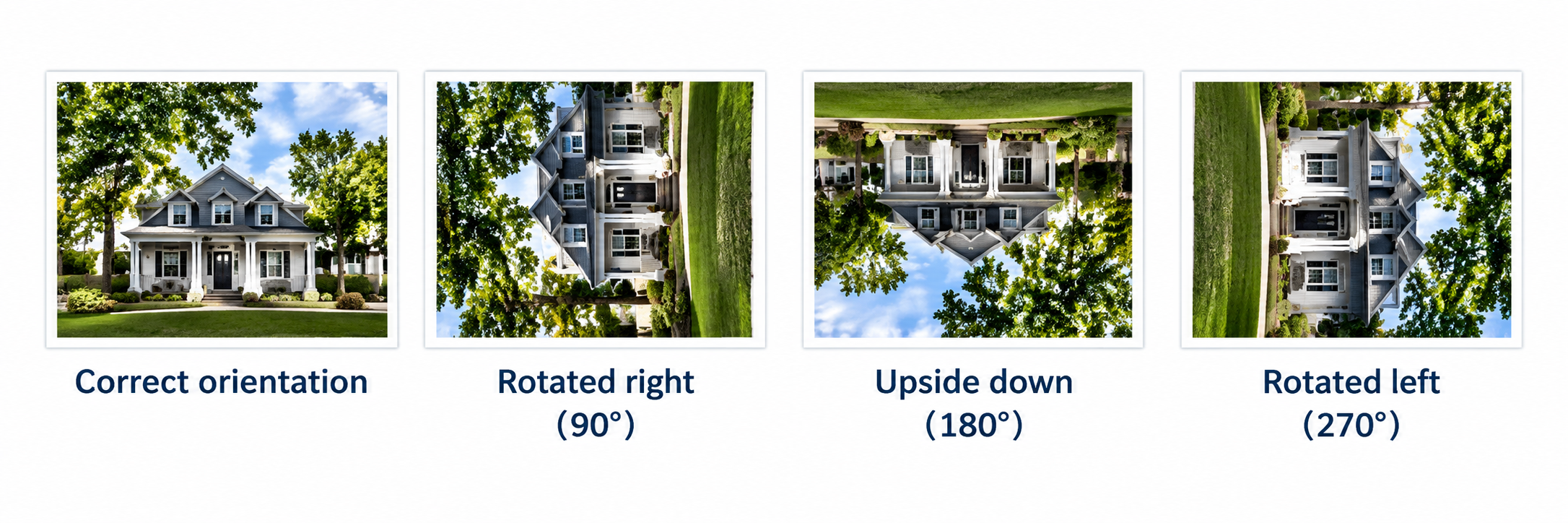
Why Normal Auto-Rotation Doesn’t Always Help
Many photo viewers and editing programs rely on EXIF orientation data to automatically rotate images. That works well when a digital camera or phone recorded the correct orientation when the picture was taken.
Scanned photographs often contain little or no useful orientation metadata. In those cases, software has to evaluate the actual visual content of the image rather than simply reading a tag from the file.
Some programs also offer “batch rotate,” but that normally applies the same rotation to every selected image. That doesn’t solve a folder where one photo is upright, another is sideways, and another is upside down.
The Slow Method: Rotating Photos Manually
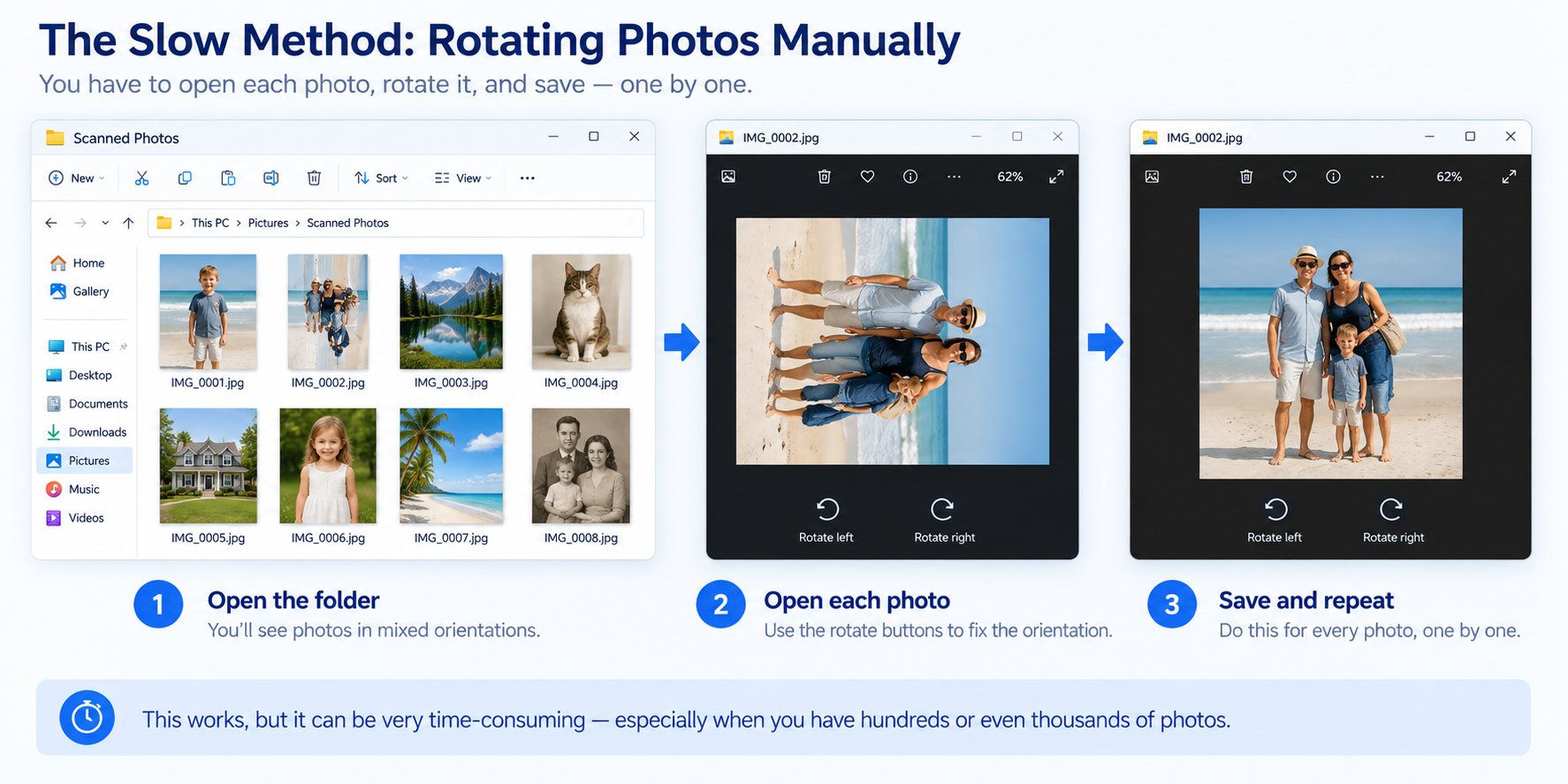
The traditional solution is to open the folder, inspect each image, rotate the ones that are wrong, save the changes, and move to the next photo.
That’s manageable for 20 photos. It becomes very different when you have 500, 2,000, or 10,000 scanned images.
How to Automatically Rotate an Entire Folder
Instead of applying the same rotation to every image, Smart Photo Auto-Rotate analyzes each photo individually and determines whether it appears upright, rotated 90 degrees, upside down, or rotated in the opposite direction.
Photos that need correction are rotated automatically. Photos that already appear upright are left alone. If the software is not confident enough about a particular photo, it leaves that image unchanged for you to review rather than making an uncertain correction.
- Analyze each photo individually
- Correct mixed orientations automatically
- Process an entire folder in one run
- Leave uncertain images unchanged
- JPEG rotation with no quality loss
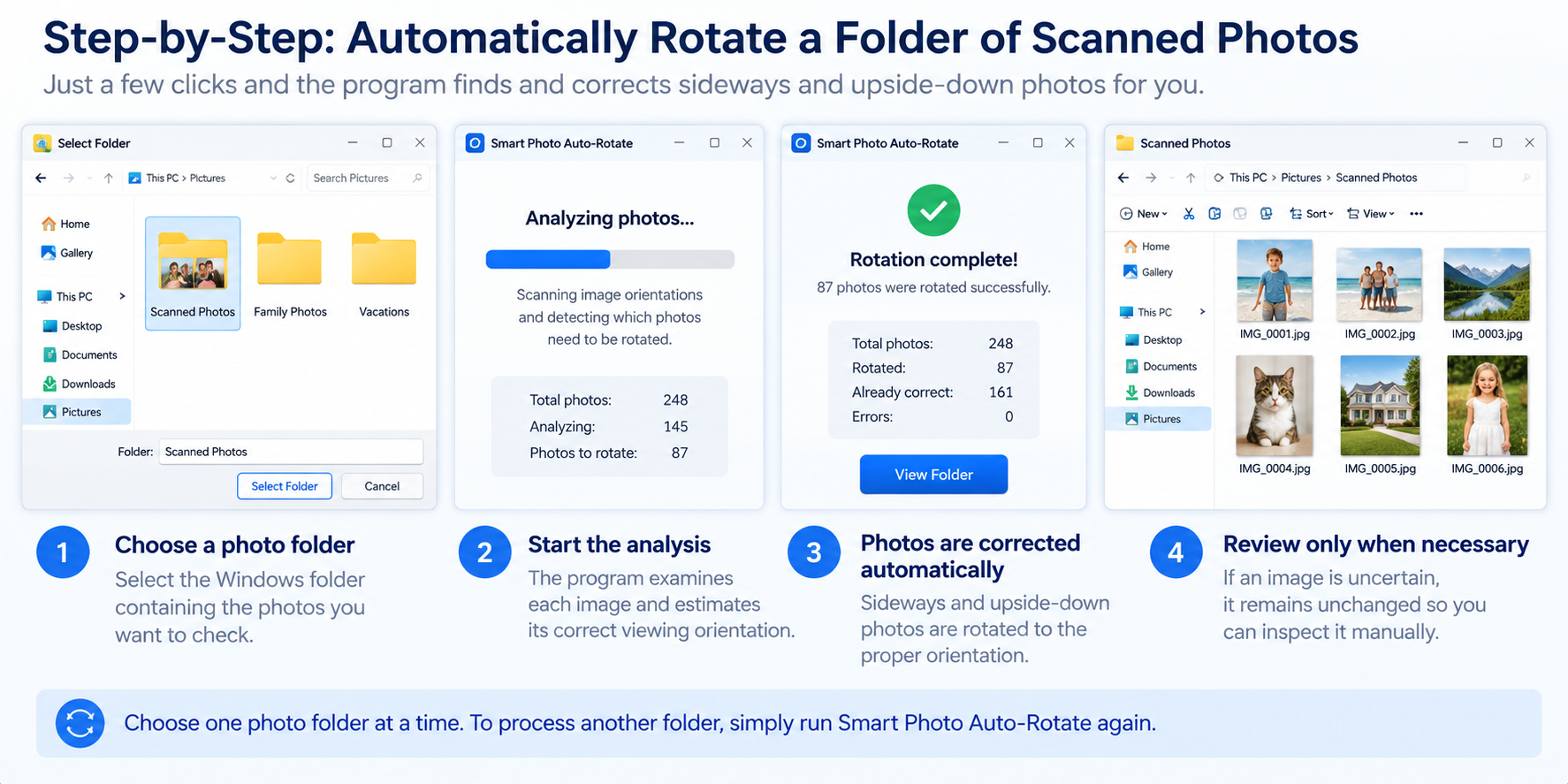
Step-by-Step: Automatically Rotate a Folder of Scanned Photos
Select the Windows folder containing the photos you want to check.
The program examines each image and estimates its correct viewing orientation.
Confident sideways and upside-down photos are rotated to the proper orientation.
If an image is uncertain, it remains unchanged so you can inspect it manually.
Choose one photo folder at a time. To process another folder, simply run Smart Photo Auto-Rotate again.
What Happens When the Program Isn’t Sure?
Automatic image recognition is useful, but not every photograph is obvious. Abstract scenes, close-ups, landscapes without a clear horizon, or unusual compositions can sometimes be difficult to interpret.
When Smart Photo Auto-Rotate is not confident enough about an image, it leaves the photo unchanged instead of guessing. A review list is created only when there are photos that may need your attention.
Will Rotating Photos Reduce Image Quality?
Smart Photo Auto-Rotate is designed to avoid unnecessary image degradation. For JPEG photographs, rotation is performed with no quality loss rather than repeatedly decoding and recompressing the image.
Photos that are already upright are not rewritten simply for the sake of processing them.
As with any large photo project, it’s a good idea to test the software on copies of your images before processing your only originals.
Your Photos Stay on Your Computer
Photo analysis happens on your Windows computer. Your photos are not uploaded to Photo Digitizer for processing.
That makes the program suitable for family photographs, personal archives, client photo collections, and other images you may not want sent to an online service.
Frequently Asked Questions
Can Windows automatically rotate scanned photos?
Windows can rotate images manually, and some software can use EXIF orientation information. Scanned photos often lack reliable orientation metadata, so automatically correcting a mixed folder generally requires software that analyzes the image itself.
Can I rotate hundreds of photos at once?
Yes. Smart Photo Auto-Rotate analyzes the images in a selected folder individually, so different photos can receive different corrections during the same run.
Does Smart Photo Auto-Rotate work with subfolders?
No. Choose one photo folder at a time. To process another folder, run Smart Photo Auto-Rotate again.
What image formats are supported?
JPG, JPEG, PNG, TIFF, TIF, and BMP.
Do my photos get uploaded?
No. Photo analysis happens on your computer.
What happens if the program isn’t sure?
It leaves that image unchanged so you can review it manually.
Have a Folder Full of Sideways Photos?
Try Smart Photo Auto-Rotate free on up to 100 photos. If it works well for your collection, the full version removes the photo limit for a one-time purchase.
No subscription · Windows 10 & 11 · Photos remain on your computer

About Photo Digitizer
Smart Photo Auto-Rotate was created by Photo Digitizer, a professional photo scanning and digitization service.
I work with large collections of printed photos, slides, negatives, documents, and family archives, so I know how much time can be lost fixing small problems one image at a time.
Smart Photo Auto-Rotate grew out of that real-world work — I wanted a faster way to correct mixed photo orientations without sacrificing image quality or sending customers’ photos to an online service.
If you have boxes of family photos, albums, slides, negatives, or documents that you’d rather have professionally digitized, Photo Digitizer can help.